CSV
Import Wealthsimple Holdings CSV
Last updated: 2026-08-22
A Wealthsimple Holdings Report is a snapshot of what you own right now. It’s the quickest way to get a portfolio into Greenline, and you can pull a fresh one whenever you like.
Step 1: Go to your Documents page in Wealthsimple
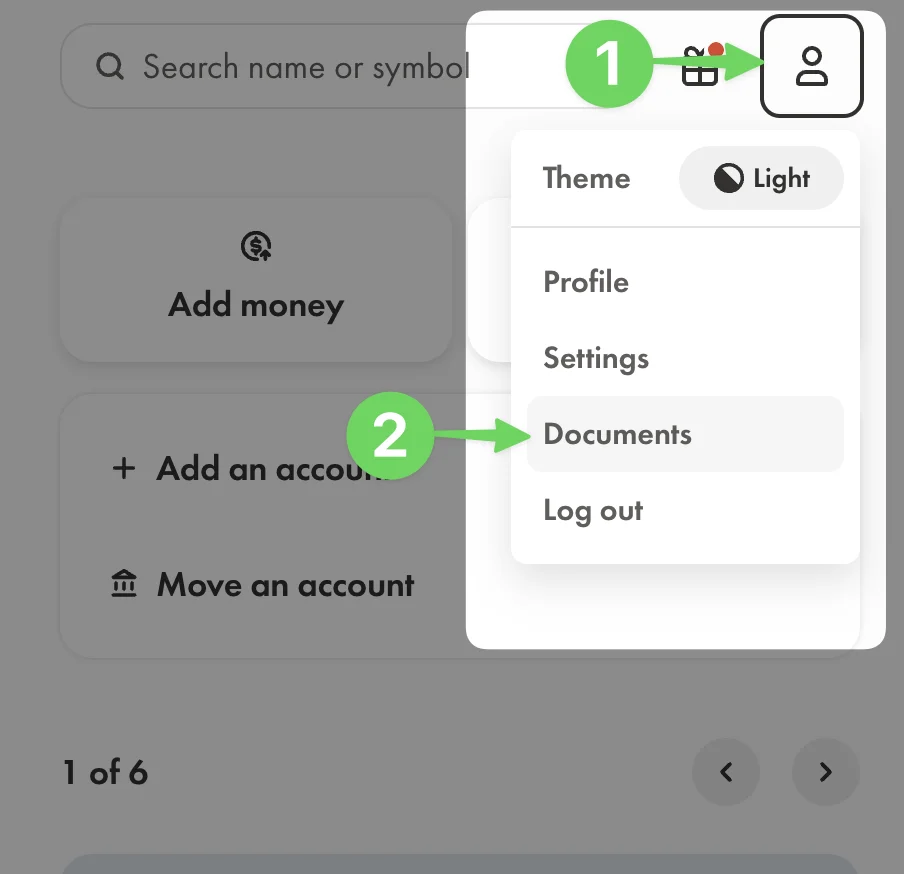
- Log into Wealthsimple.
- From the profile menu, select Documents.
Step 2: Download your Holdings Report
- Click the Request Documents button.
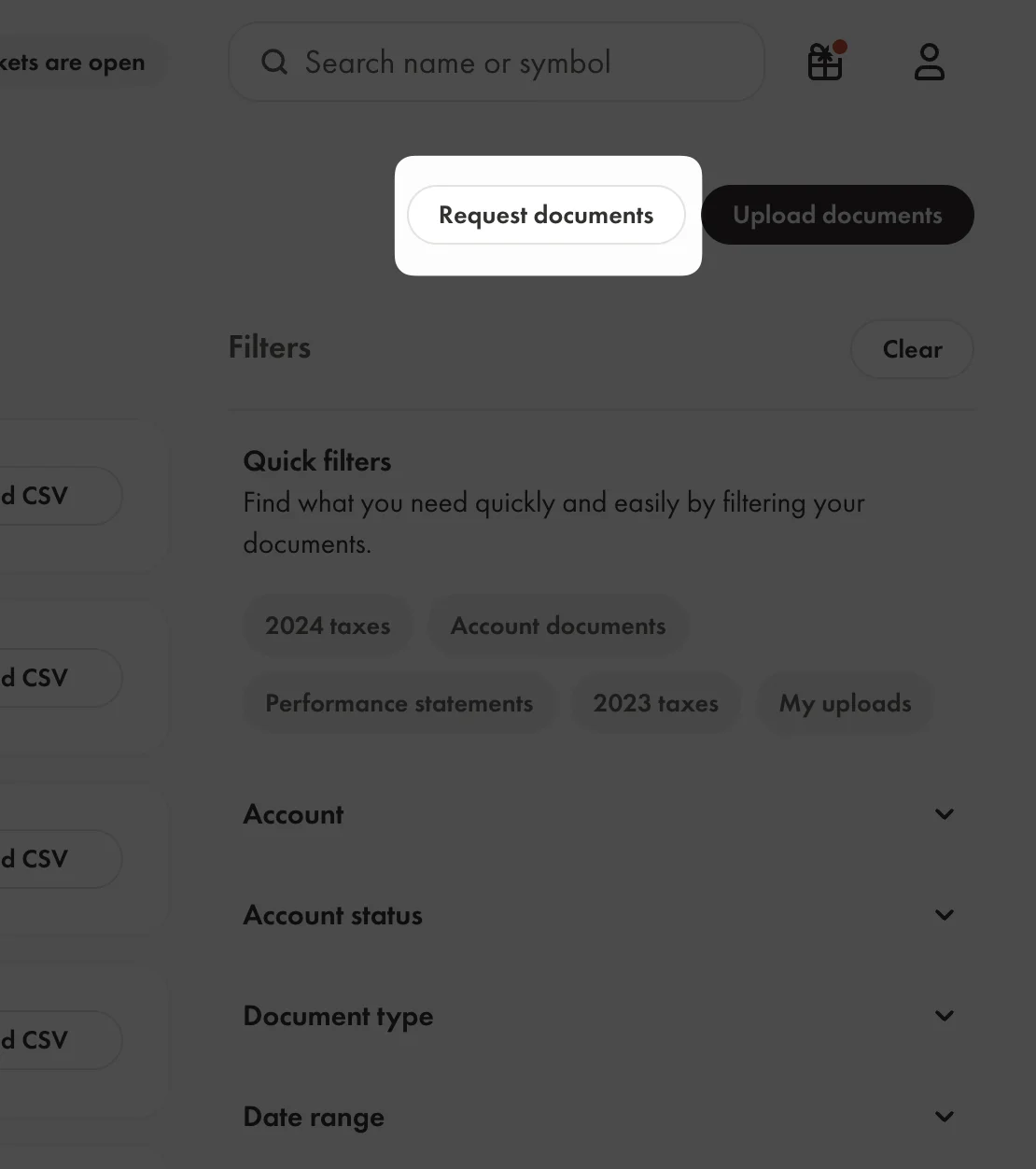
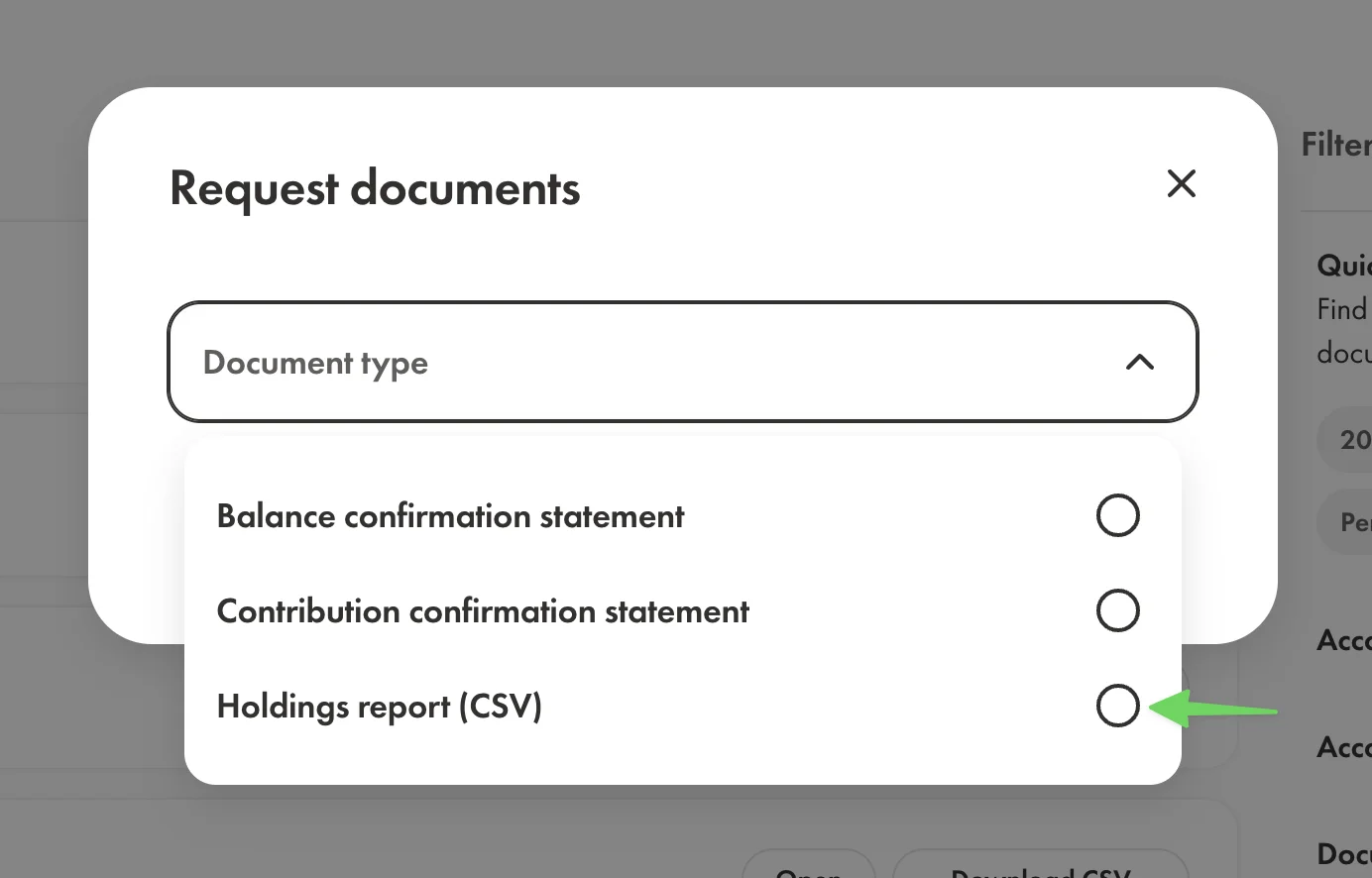
- This opens a new window with a list of document types. Select the Holdings report (CSV) document type.
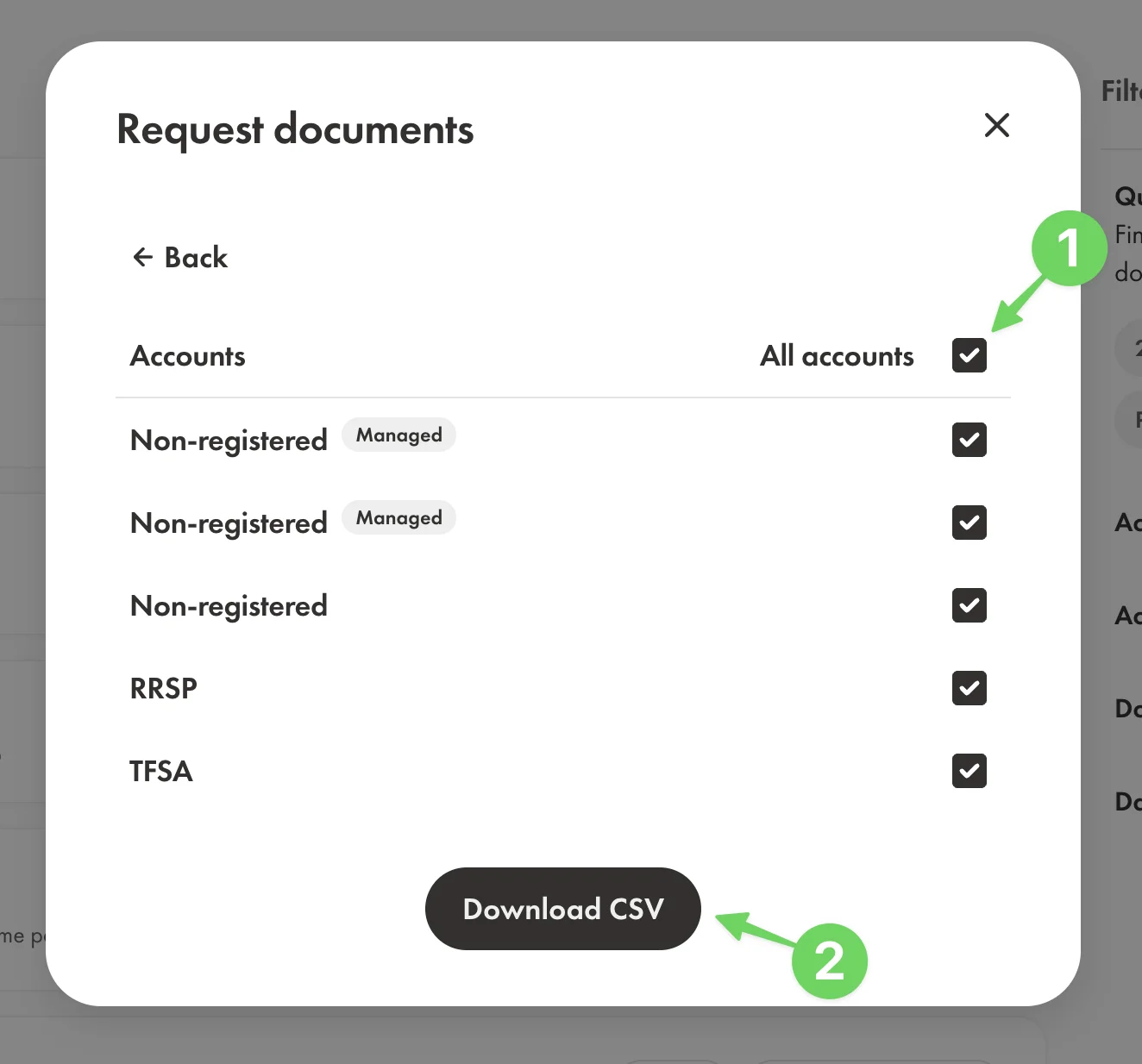
- This will provide a list of accounts to collect data from. Select all the investment accounts you want to collect data from and click the Download CSV button.
Import it into Greenline
- Open Greenline and go to Portfolio, then Holdings.
- Open the menu and choose Bulk import options.
- Pick Holdings Snapshot under your brokerage.
- Drag the file in, or browse for it. CSV only, up to 10 MB.
- Match each account in the file to the matching account in Greenline. Greenline suggests the pairing, and you can create an account here if one is missing.
- Greenline puts the result in your Portfolio Inbox, the tray icon at the top of the screen. Open it, check what was found, and confirm.
This route handles every account in the file in one go, which is why it lives outside any single account.
Nothing changes in your portfolio until you confirm it in the inbox. If something was read wrong, you can correct it there.
Still having trouble? Contact us at support@usegreenline.com.
Still having trouble?
Reach out and we'll help you get set up. We usually reply within a day.
Email support@usegreenline.com