Importing Data via Screenshot
Last updated: 2026-08-22
If your brokerage doesn’t offer a PDF or CSV export, take a screenshot of your holdings and let Greenline read it.
Steps
- Log in to your brokerage and go to your holdings page.
- Take a screenshot that shows all your holdings.
- Open Greenline and go to the account this screenshot belongs to.
- Press Upload, then choose Screenshot.
- Pick the image. On a phone that’s your photo library or files; on a computer you can drag the image in.
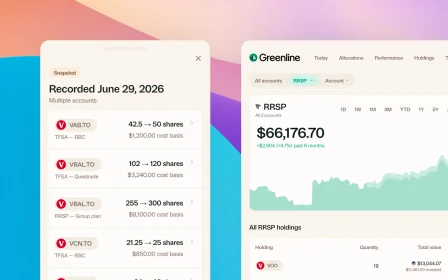
- Greenline reads the screenshot and puts what it found in your Portfolio Inbox.
- Open the inbox, check the holdings, correct anything that’s off, and confirm.
Nothing changes in your portfolio until you confirm it. See Reviewing your imports for more on that step.
Tips for better results
- Make sure all your holdings are visible before you capture. Anything cut off won’t be read.
- Crop out navigation bars, ads and anything else unrelated.
- If your holdings list is long, try landscape mode so more fits on screen.
- PNG, JPG, GIF and WebP all work. One image at a time, up to 10 MB.
Reading a screenshot is never perfect, which is why the inbox step exists. Give the numbers a glance before you confirm.
Still need help? Reach out at support@usegreenline.com.
Related articles
Still having trouble?
Reach out and we'll help you get set up. We usually reply within a day.
Email support@usegreenline.com