Reviewing Your Imports
When you upload a statement, a CSV, or a screenshot, Greenline reads it and then stops. Nothing goes into your portfolio until you’ve looked at what it found and said yes.
That waiting room is called the Portfolio Inbox.
Finding it
Look for the tray icon at the top of the screen, next to the eye icon. It sits there on every page, on your phone and on a computer. When something is waiting for you, a number appears on it.
You’ll also see a green banner at the bottom of the screen when an upload finishes processing. Tapping that takes you straight there.
What’s inside
The inbox has two tabs.
- Uploads. Everything Greenline has read from a file you sent it. Open one to see the holdings and transactions it found, change anything that looks wrong, then confirm.
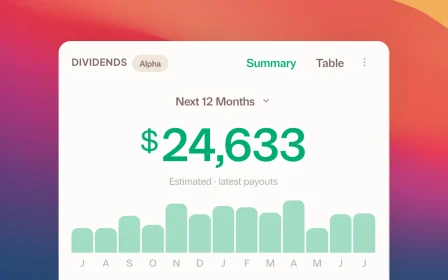
- Dividends. Dividends Greenline expects you to have received, based on what you hold. Confirm the ones that arrived so your income figures stay accurate.
Why it works this way
Reading a PDF or a screenshot is guesswork, and good guesswork is still guesswork. A ticker can be misread, a number can land in the wrong column. Rather than quietly write that into your portfolio and leave you to spot it later, Greenline shows its work first.
If something is wrong, fix it in the inbox before you confirm. That’s easier than correcting it afterwards.
While you wait
Large files take a moment. The tray icon shows a spinner and a count while Greenline is working, and you can carry on using the app. You don’t have to sit on the page.
Still need help? Reach out at support@usegreenline.com.
Still having trouble?
Reach out and we'll help you get set up. We usually reply within a day.
Email support@usegreenline.com