
CSV
How to Import Wealthsimple CSVs into Greenline
Last updated: 2026-08-22
Wealthsimple’s monthly statement CSVs carry your transactions, so importing them builds up your history rather than just a snapshot of today. If you only want today’s holdings, the Holdings Report is faster.
Step 1: Go to your monthly statements in Wealthsimple
- Log into Wealthsimple.
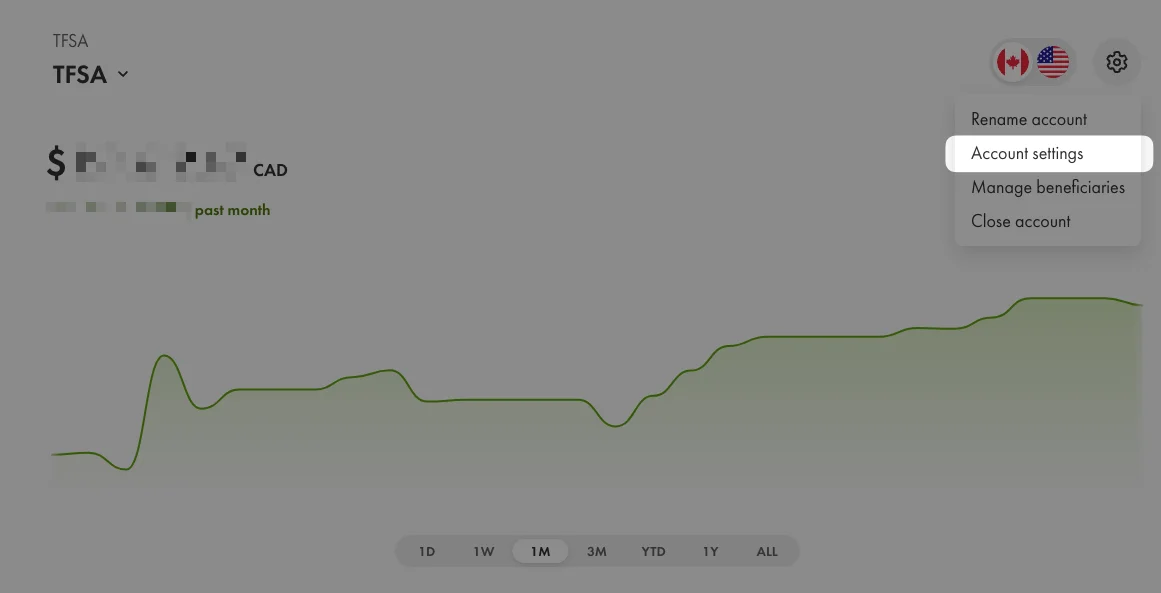
- Select the account you want to export from (TFSA, RRSP, Non-Registered, etc.).
- From the settings menu, select Account settings.
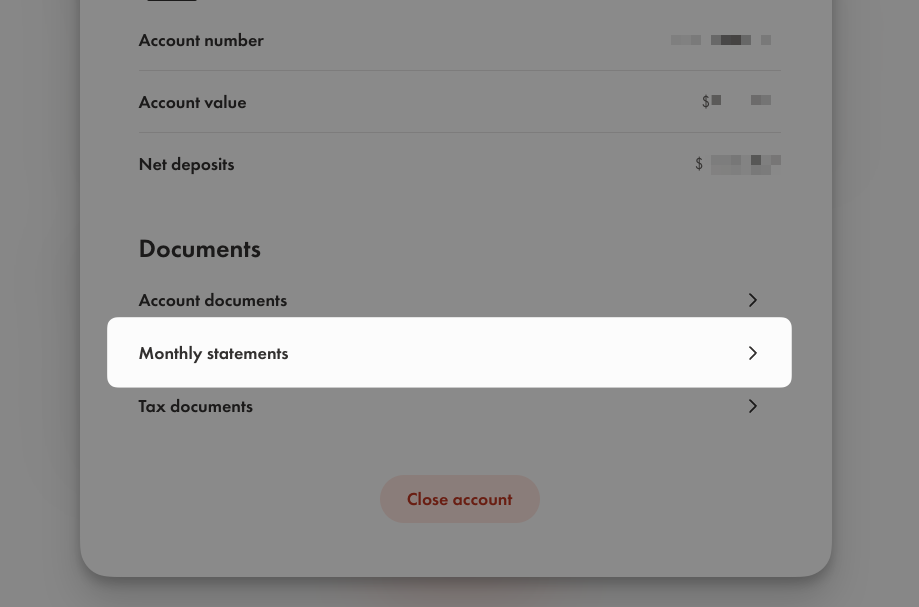
- From the Account view, select Monthly Statements.
Step 2: Download your monthly statements
- Statements are grouped by month (e.g. April 2025, March 2025, February 2025).
- Each month contains performance statements for different accounts (USD and CAD).
- Each statement shows the statement type, the account type, the date it was generated, and the currency. Greenline supports both USD and CAD accounts.
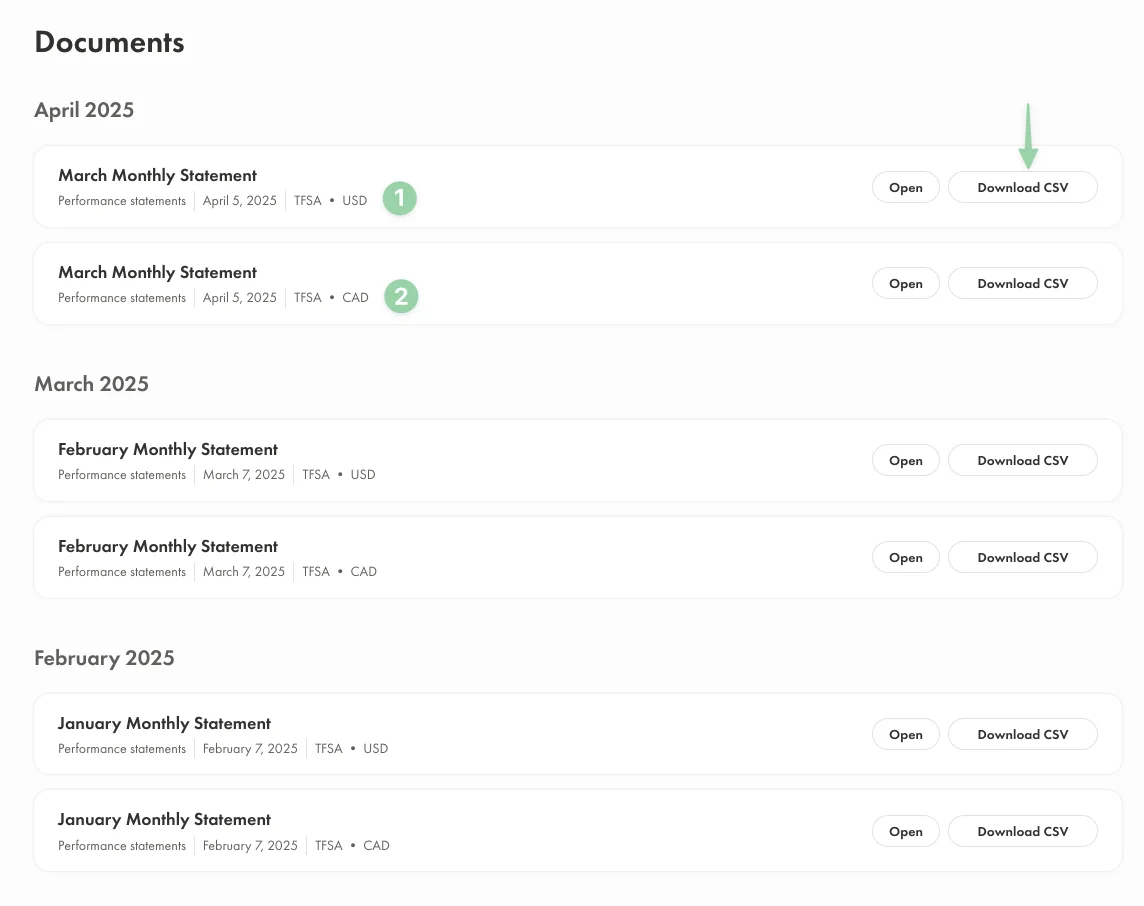
- Click the Download CSV button next to the statement you want, then save the file to your computer.
You only have to do this once, but you’ll want a file for every month you’re trying to cover. Wealthsimple produces them one month at a time, so download each month you need before you move on.
Import it into Greenline
- Open Greenline and go to the account this file belongs to. If you haven't added that account yet, add it first.
- Press Upload.
- Choose Institution CSV.
- Drag the file in, or browse for it. One file at a time, up to 10 MB each.
- Greenline works out which brokerage the file came from and shows you what it read. Check it before you continue.
- Greenline puts the result in your Portfolio Inbox, the tray icon at the top of the screen. Open it, check what was found, and confirm.
Downloaded several months at once? Repeat these steps for each file.
Nothing changes in your portfolio until you confirm it in the inbox. If something was read wrong, you can correct it there.
Still having trouble? Contact us at support@usegreenline.com.
Still having trouble?
Reach out and we'll help you get set up. We usually reply within a day.
Email support@usegreenline.com